
In short
Open Bookings. Each booking has buttons for what you can do next: Check in, No-show, Reschedule, Take payment and Cancel.
To take a payment, tap Take payment on the booking and choose EFTPOS, cash, a saved card or a payment link. To add a phone or counter booking, tap + Add booking.
Add a booking
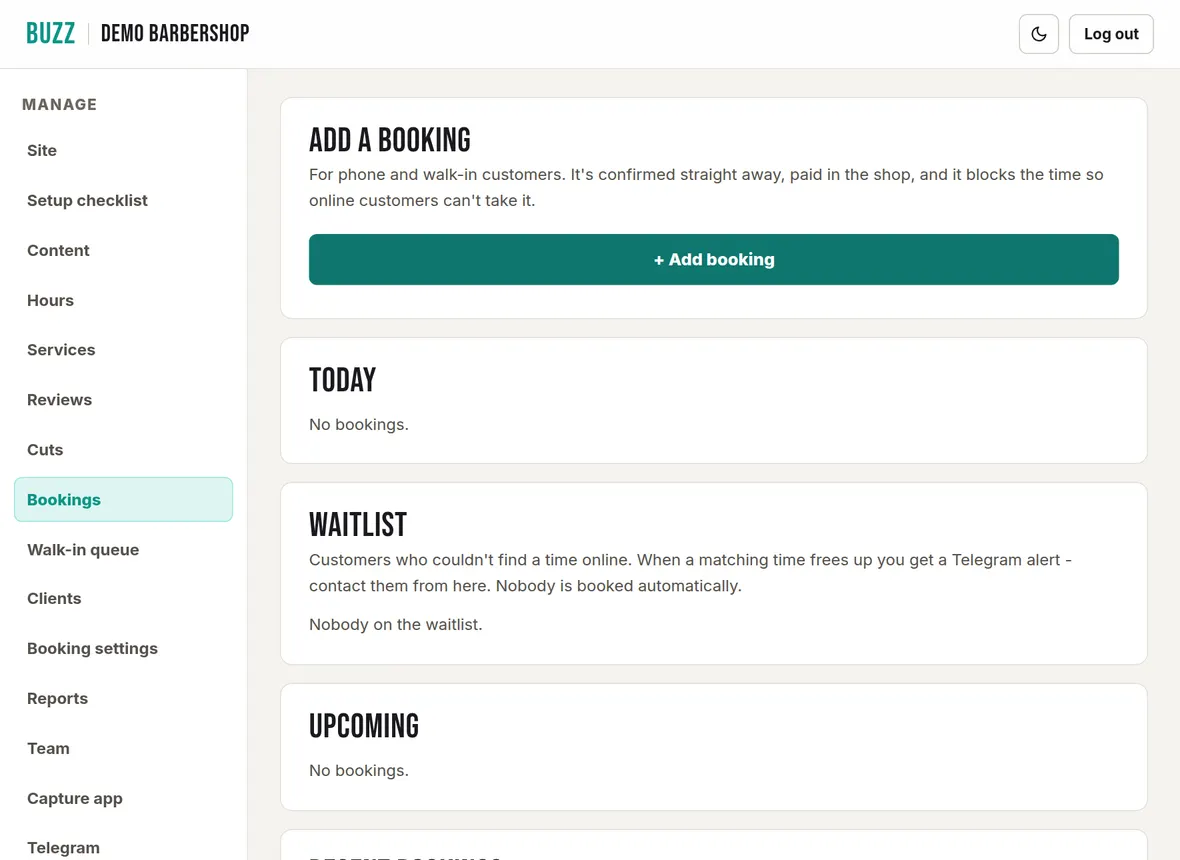
For phone and walk-in customers. The booking is confirmed straight away and paid in the shop.
- Tap + Add booking.
- Choose the Service, and a second service if they want one. Choose the Barber if you have barbers taking bookings.
- Pick the Date and tap Find free times, then tap a time.
- Enter the customer's name. Mobile, email and a note are optional. With an email, they get a confirmation.
- Tap Add booking.
Bookings you add can be up to 180 days ahead and don't need the minimum notice that online customers do. Squeeze in at a set time books an exact time even if it overlaps another booking.
Check in, no-show and reschedule
- Check in: the customer has arrived. The booking shows as Checked in.
- No-show: they didn't turn up.
- Reschedule: pick a new date (and barber), then tap a free time. With an email on the booking, the customer is emailed the change.
Each booking shows its reference code, service, barber, customer, status and how it is being paid.
Take payment
When money is owed on a booking, tap Take payment:
- Paid by EFTPOS, Paid in cash or Paid another way records money taken in the shop. No Buzz fee.
- Charge saved card charges the card the customer saved when they booked.
- Email a payment link or Get a payment link lets the customer pay by card. Get a payment link copies it so you can text it.
Card payments through Buzz have the 0.5% Buzz fee plus Stripe's card fee. See Online booking fees.
Cancel or refund a booking
Tap Cancel (or Cancel/refund when the customer paid online). The console tells you what will be refunded before you confirm. Refunds go back to the customer's card in full, and the customer is emailed if they gave an address. A cancellation can't be undone.
Charge a no-show fee
If you use Save card, pay in the shop (no-show fee option), mark the booking No-show first, then tap Charge no-show fee. The fee you set in Booking settings is charged to the customer's saved card.
Card declined, or no card saved? Tap No-show fee link on the booking. Choose Email a no-show fee link to send it to the customer, or Get a no-show fee link to copy it and text it yourself. The link asks for the no-show fee only, works for 23 hours, and is recorded on the booking once paid. It needs your bank account connected. Customers who booked under a different payment option never agreed to a no-show fee, so the button only shows for this option.
The booking waitlist
Customers who can't find a time online can join your waitlist. If Telegram is connected, you get an alert when a matching time frees up. Nobody is booked automatically; you choose who to contact.
- Call or Text the customer. Text opens a message with your booking link ready to send.
- Email a booking link sends them your booking page.
- Booked marks them as sorted. Remove takes them off the list.
What customers can do themselves
Every customer who books online gets a confirmation email with a link to manage their booking. Up to your self-serve window (48 hours before the appointment unless you change it) they can cancel or move it themselves. Closer to the time they are asked to contact the shop. You see any change on the Bookings page.
Related Buzz help topics
- Set up online booking and payments: Connect your bank, choose how customers pay, set cancellation rules, barbers, add-ons, blocked dates and fees.
- Clients, reports and Xero exports: Client notes, importing clients from a CSV, takings reports, PDF export and Xero files.
- Run the walk-in queue: Turn the queue on, set the rules, check barbers in, run the queue board and set up a kiosk or waiting-room display.
- All help topics
Contact Buzz support
Use the Something needs fixing? box on the Site page of your console, or email hello@airea.co.nz. Tell us your shop name and what you were trying to do, and we reply by email.
Open my shop console