
In short
Go to buzz.airea.co.nz/console and sign in with the email on your account, or with Google or Microsoft. The menu down the side (the Site button at the top on a phone) opens each part of the console.
Every change you save goes to your site automatically. It shows on your live site within 2 minutes; refresh the page to see it.
If your site is still a private preview, tap Ask Buzz to publish when you are happy with it and we put it live.
Sign in to the shop console
Open buzz.airea.co.nz/console. There are three ways in:
- Email me a login link: type the email address on your Buzz account and tap the button. We email you a link. Open it, then tap Sign in to finish. Each link works once.
- Continue with Google, if your account email is a Gmail or Google Workspace address.
- Continue with Microsoft, if your account email is an Outlook, Hotmail or Microsoft 365 address.
If the email doesn't arrive, check your spam folder, then ask for a new link. If you see "Too many login requests", wait a few minutes before trying again.
If you own more than one shop on the same email, the console opens the shop you last used. To open a different shop, use the login link in an email from that shop's Buzz account.
The console menu
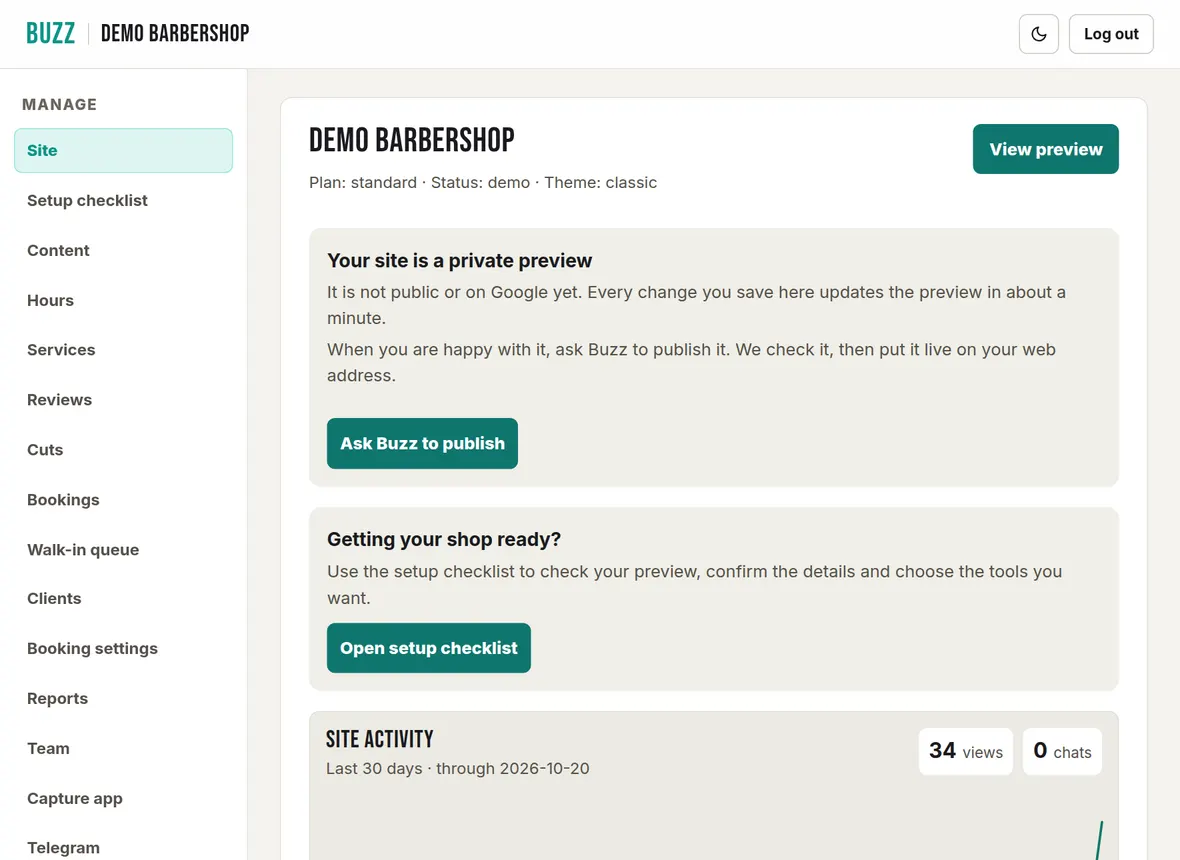
On a computer the menu sits down the left. On a phone, tap the button at the top of the page (it shows the name of the page you are on) to open the menu. The pages are:
| Menu item | What it does | Help page |
|---|---|---|
| Site | Your web address, site activity and theme. | Your website |
| Setup checklist | A list of everything to check before and after you go live. | Below |
| Content | Shop name, phone, address, headings, Google search wording, social links, rules, FAQ, areas served, logo and shop photos. | Your website |
| Hours | Opening hours. | Your website |
| Services | Your price menu. | Your website |
| Reviews | Your Google rating and the reviews on your site. | Your website |
| Cuts | Approve, download or delete photos of your work. | Cut photos |
| Bookings | Today's, upcoming and recent bookings, and the waitlist. | Bookings |
| Walk-in queue | The live walk-in queue and its settings. | Walk-in queue |
| Clients | Everyone who has booked, with notes. | Clients and reports |
| Booking settings | Online booking, payments, barbers, add-ons and blocked dates. | Online booking setup |
| Reports | Takings by date, PDF and Xero exports. | Clients and reports |
| Team | Your barbers, their photos and sign-in. | Team and barbers |
| Capture app | Add before and after photos of cuts. | Cut photos |
| Telegram | Get chat messages and alerts on your phone. | Telegram and chat |
| Show your latest Instagram posts on your site. | Cut photos | |
| Billing | Your plan, card, invoices and cancelling. | Billing |
The moon button at the top switches the console between light and dark. Log out is at the top right.
Add the console to your phone
The console works like an app on your phone, so it is one tap away at the chair.
- iPhone: open the console in Safari, tap the Share button (the square with an arrow), then Add to Home Screen.
- Android: open the console in Google Chrome, then tap Add app on the banner at the top, or open the Chrome menu (the three dots) and choose Install app or Add to Home screen. Use Chrome, not another browser: some Android browsers build an app that Google Play Protect blocks as "built for an older version of Android". Links and QR codes open in your phone's default browser, which on many phones (Samsung included) is not Chrome. Either open the Chrome app and go to buzz.airea.co.nz/console yourself, or set Chrome as your default browser in Settings, under Apps, then Default apps.
Your preview and asking Buzz to publish
Until Buzz publishes your site, it is a private preview. It is not public and Google can't see it. The Site page shows a banner saying so, with a View preview button.
- Make your changes in the console. Each saved change updates your preview in about a minute.
- Open the preview and check every section: name, phone, address, hours, prices, photos and team.
- When you are happy, tap Ask Buzz to publish. Add a note if there is anything we should know, then tap Send request.
We check your site, put it live on your web address and let you know. You can keep making changes while you wait.
The setup checklist
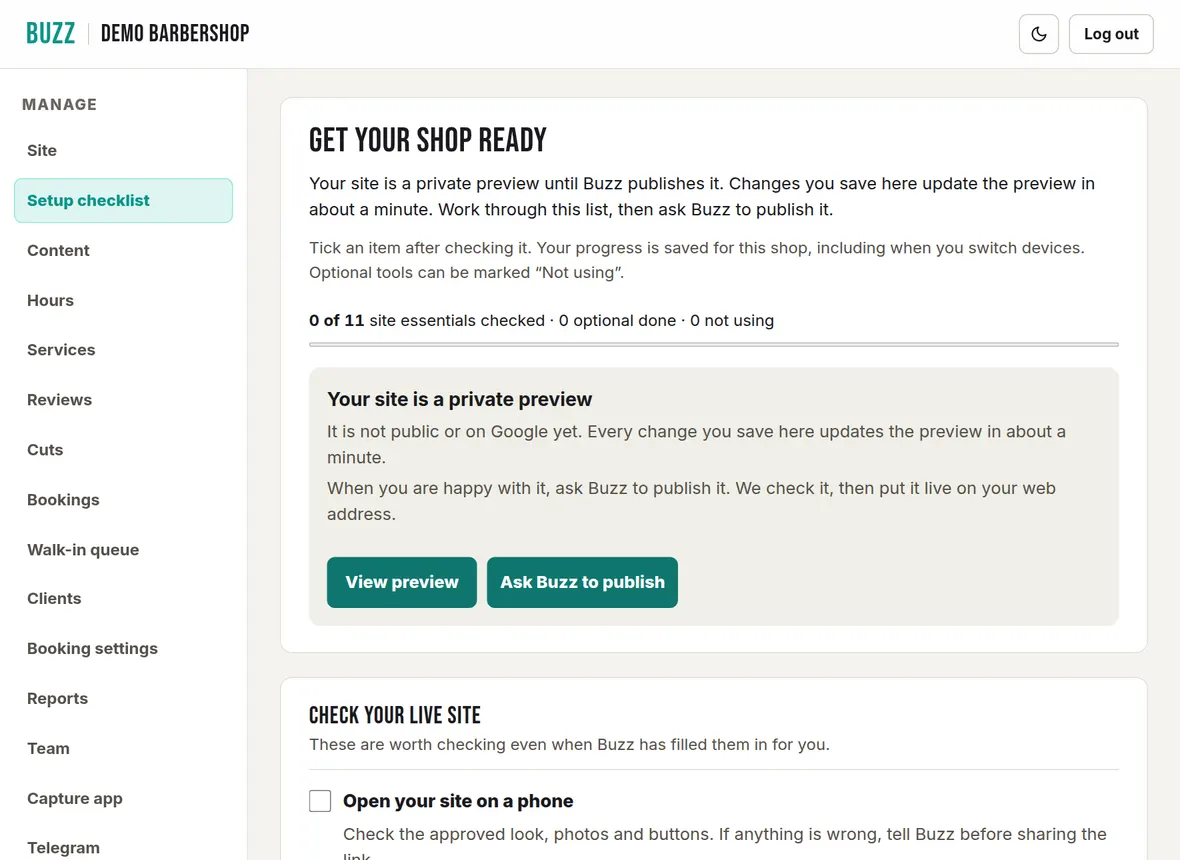
Open Setup checklist from the menu, or tap Open setup checklist on the Site page. It lists the site essentials, such as your details, hours and prices, plus optional tools such as online booking and the walk-in queue.
- Each item has a button that opens the right part of the console.
- Tick an item once you have checked it. Your ticks are saved for your shop, so they follow you to another phone or computer.
- For optional tools you don't want, tap Not using. Tap Use this to bring one back.
How long changes take to show on your site
Every time you save, Buzz rebuilds your site for you. There is no publish button to press.
- Live site: the rebuild usually takes under a minute. Allow up to 2 minutes when several shops are publishing at once, then refresh the page to see your change.
- Private preview: updates in about a minute.
The Site page shows when your site was last updated. While a change is going through it says "Your live site is updating with your latest change". If an update ever fails, the console tells you, and Buzz retries and is told automatically.
Still seeing the old version after 2 minutes? Check the Site page says your site was updated after you saved, then refresh your site. If it still hasn't changed, tell us using the box below.
Ask Buzz for help
The Site page and the setup checklist both have a Something needs fixing? box. Type what is wrong or what you need and tap Send to Buzz. It comes straight to the Buzz team with your shop attached, and we reply by email. You can also email hello@airea.co.nz.
Related Buzz help topics
- Edit your barbershop website: Theme, opening hours, services and prices, wording, Google search, FAQ, rules, areas served, logo, photos and reviews.
- Cut photos, the capture app and Instagram: Snap cuts at the chair, add before and after photos, approve, download or delete them, and show your Instagram.
- Set up online booking and payments: Connect your bank, choose how customers pay, set cancellation rules, barbers, add-ons, blocked dates and fees.
- All help topics
Contact Buzz support
Use the Something needs fixing? box on the Site page of your console, or email hello@airea.co.nz. Tell us your shop name and what you were trying to do, and we reply by email.
Open my shop console