
In short
Open the page you want in the console (Content, Hours, Services or Reviews), make the change and press its Save button. Each section has its own Save button, so save before you move on.
Your live site shows the change within 2 minutes. Refresh the page to see it.
Theme, web address and site activity
The Site page shows:
- View live site (or View preview), to open your site.
- Site activity: page views and chats over the last 30 days.
- Web address: where your site lives. If you are connecting a domain you already own, this card lists two settings (called DNS records) to add in your account with the company you bought the domain from. We check every 15 minutes and email you when it is live. To change your web address, email hello@airea.co.nz.
- Theme: the look of your site. Buzz has six: Classic, Clean, Bold, Heritage, Urban and Scandi. Tap one, then Save theme.
Change your opening hours
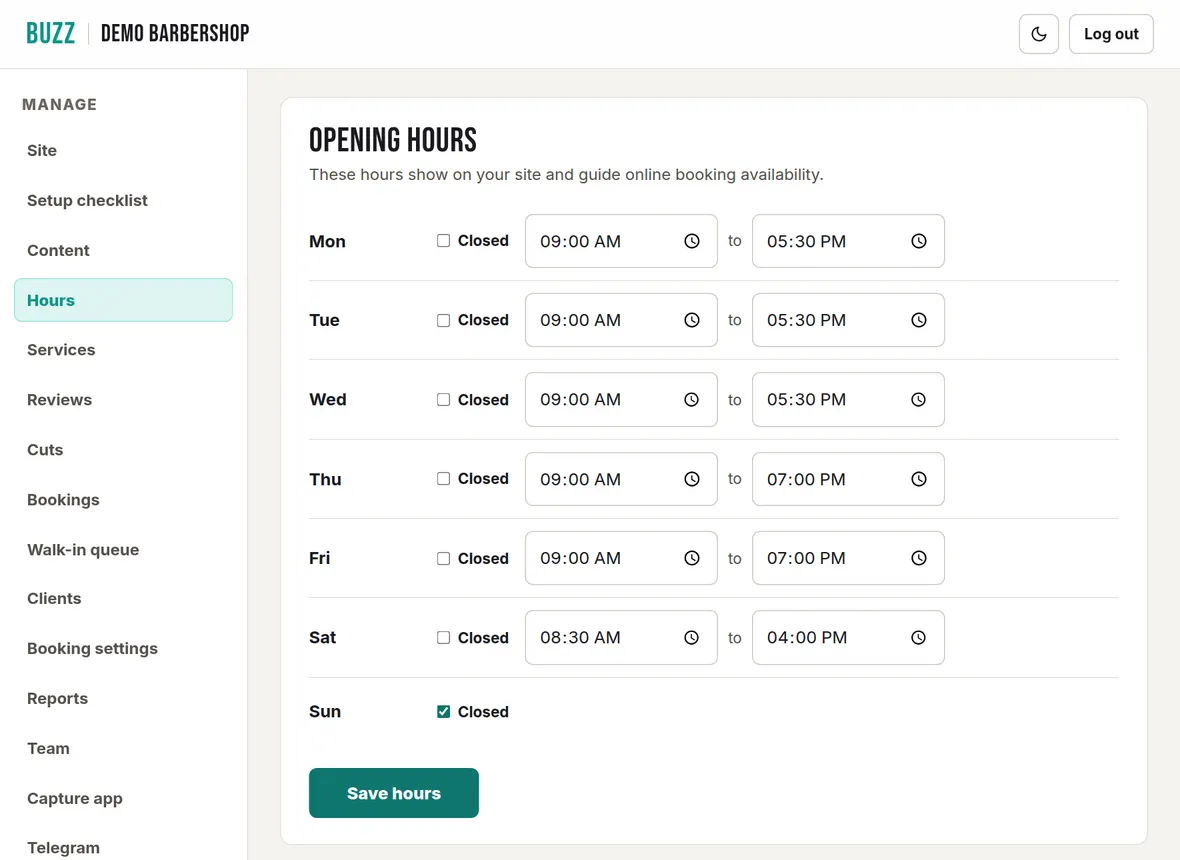
- Open Hours from the menu.
- For each day, set the opening and closing time. Tick Closed for a day you are shut.
- Press Save hours.
Your hours show on your site, set the "open now" badge, answer the opening hours question in your FAQ and chat, and decide when customers can book online. If you use the walk-in queue, every barber goes off duty when the shop closes.
Closed for a public holiday or a one-off day? Leave your normal hours as they are and block the date in Booking settings → Blocked dates so nobody can book it. A blocked date only stops bookings: your site still shows your normal hours, so also add a note to the Promo banner on the Content page, such as "Closed Monday 27 October for Labour Day".
Barbers who work different hours to the shop can have their own hours in Booking settings → Barbers.
Change your services and prices
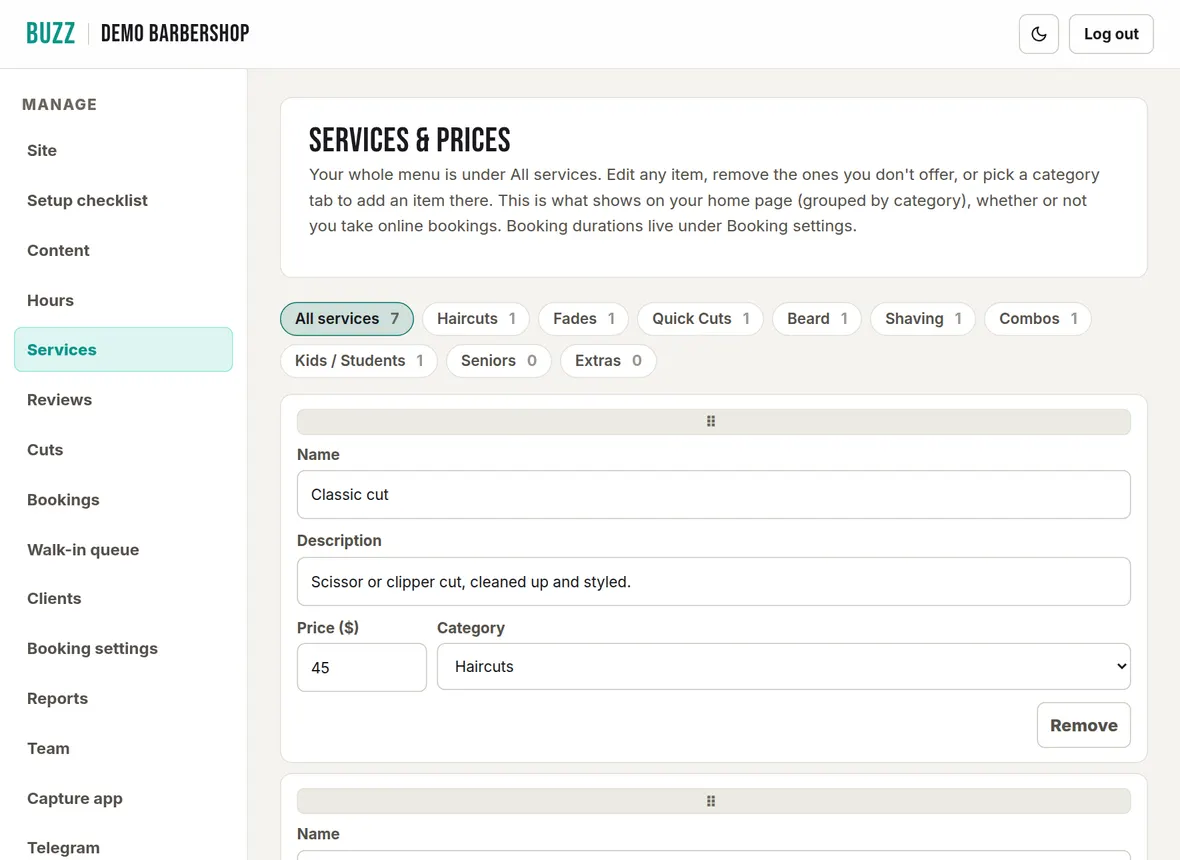
Services holds your price menu. It opens on All services, your whole menu. The other tabs (Haircuts, Fades, Quick Cuts, Beard, Shaving, Combos, Kids / Students, Seniors, Extras) show one category at a time.
- Change a service: edit its name, description, price or category in place.
- Add a service: tap + Add service. To add straight into a category, open that category's tab first.
- Remove a service: tap Remove on it.
- Reorder: drag the ⠿ handle on a computer, or use the up and down arrows on a phone.
Press Save services when you are done. Your site groups the menu by category.
- The "From" price on your site is always your lowest price, worked out for you.
- If two services have the same name, the console warns you before saving. It is usually one typed in twice.
- If you take online bookings, every service on your menu can be booked unless you untick it. Set how long each takes in Booking settings → Bookable services. A service you remove from the menu is removed from booking too.
Shop details and headings
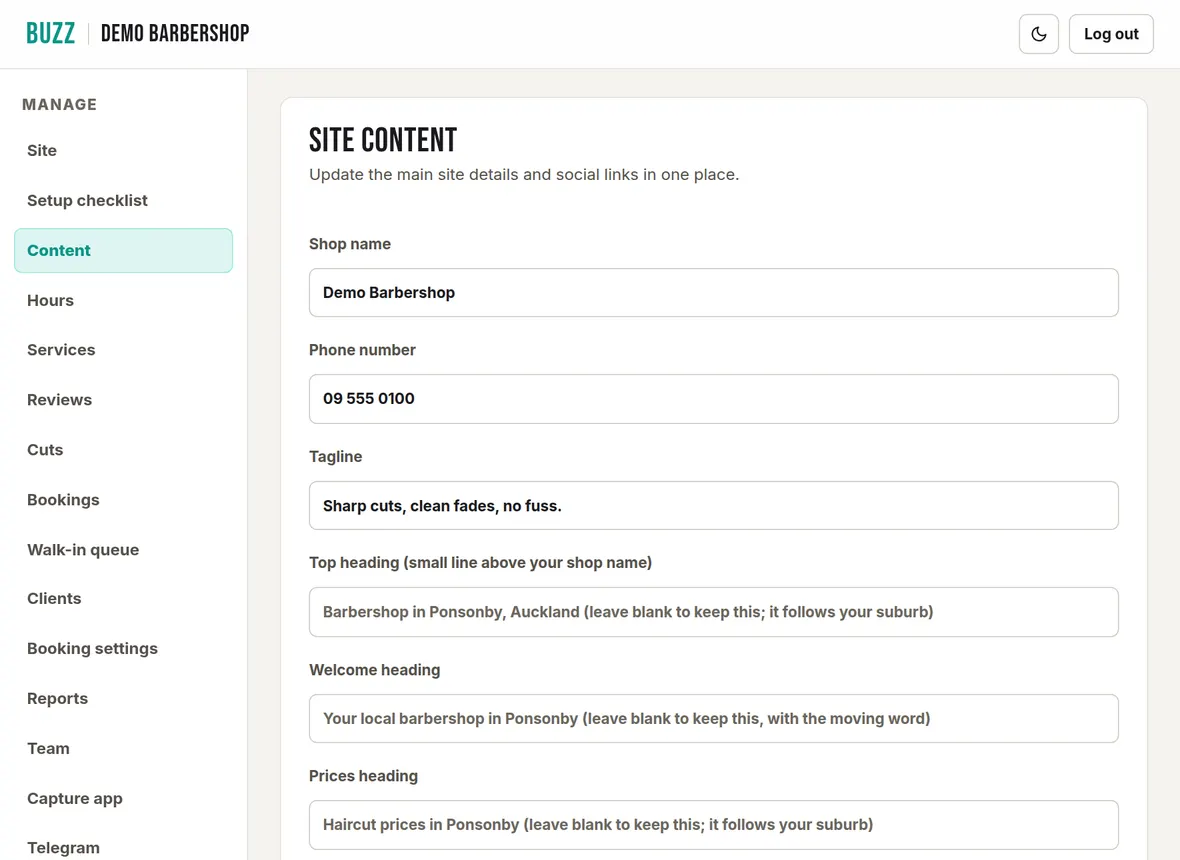
The first section of Content holds your main details. Press Save content after changing any of them.
- Shop name, Phone number, Tagline and Address.
- Top heading: the small line above your shop name at the top of your site.
- Welcome heading, Prices heading, Photos heading, Location heading: the headings of those sections.
- Welcome paragraph: the text that introduces your shop.
- Promo banner: a short notice across your site, such as a special or holiday hours. Clear it to hide it.
- Social links: your Instagram, Facebook, TikTok and YouTube. Type your username or paste the full link. Leave one blank to hide its icon.
The headings already have sensible wording, most of it naming your suburb, shown faintly in each box. Leave a box blank to keep that wording. If your suburb changes, those headings follow it.
How your site shows on Google
Under Google search on the Content page:
- Search title: the blue headline in Google results (up to 70 characters).
- Search description: the two lines under it (up to 170 characters).
Press Save content after changing them. Leave both blank to use the automatic wording shown faintly in each box, which names your shop, what you do and your suburb. Google decides when to show the new wording, which can take days or weeks.
Booking and visit rules
Booking and visit rules on the Content page builds your rules page. It is linked from your site's footer and your booking page, and customers tick to accept it before they book.
- From your booking settings: rules Buzz writes from your booking settings, such as your cancellation policy. They update themselves when you change those settings.
- Your own rules: tap a starter (+ Running late, + Kids' cuts, + Accessibility) or + Other rule and write the rule. You can add up to 10.
Press Save rules, then View rules page to check it.
FAQ section on your site
The FAQ section sits at the bottom of your site, and Google can show it in search results.
- Answered from your details: starter questions, such as where you are, when you are open and what a haircut costs. They follow your address, hours, prices and settings, so they stay up to date. Untick any you don't want.
- Your own questions: tap + Add question and write the question and answer. You can add up to 10. A question without an answer isn't shown.
Press Save FAQ.
Areas served
Areas served lists nearby suburbs your customers come from. They appear under your address on your site, for example "Your shop also serves Takanini and Drury", which helps people searching from those suburbs find you.
- Tick the nearby suburbs suggested from your address.
- Type any others in Other suburbs, separated by commas.
- Press Save areas. You can choose up to 8.
Logo and photo stamp
- Under Logo, tap Upload / crop logo and choose your logo. A PNG with a transparent background works best (under 12 MB).
- Drag and zoom to fit it in the square, then tap Use logo.
Under Stamp on your cut photos, choose what is stamped on your cuts:
- Stamp cuts with your shop name, Stamp cuts with your logo or No stamp.
- Stamp size: Small, Medium or Large.
- Stamp position: Bottom right, Bottom left, Bottom centre, Top right or Top left.
The preview shows your newest cut with your choice. Nothing changes until you press Save stamp. The stamp is one setting for all your cuts: saving re-stamps the cuts already on your site too. Photos added straight to the photo strip keep the stamp they were added with.
A white logo automatically gets a dark copy for the light themes, and a black logo a white copy for the dark themes.
Banner image and shop photos
Shop photos are the styled shots of your shop. Photos of cuts live on the Cuts page instead.
- Banner image: the large photo at the top of your home page. Landscape works best. Tap Upload banner or Replace banner.
- Photo strip: shots of the shop, chairs or fresh cuts. Tap + Add photo and choose a photo. Drag it to move it and use Zoom (or pinch on a phone) to choose what shows in the frame, then tap Add to photo strip. Tap Remove on a photo to take it off.
Your site holds up to 24 photos, newest first, and approved cuts count towards them. Adding a photo when there are already 24 removes the oldest one from your site, and the console tells you when this happens.
Photos save as soon as they upload. Keep each one under 8 MB.
Reviews and your Google rating
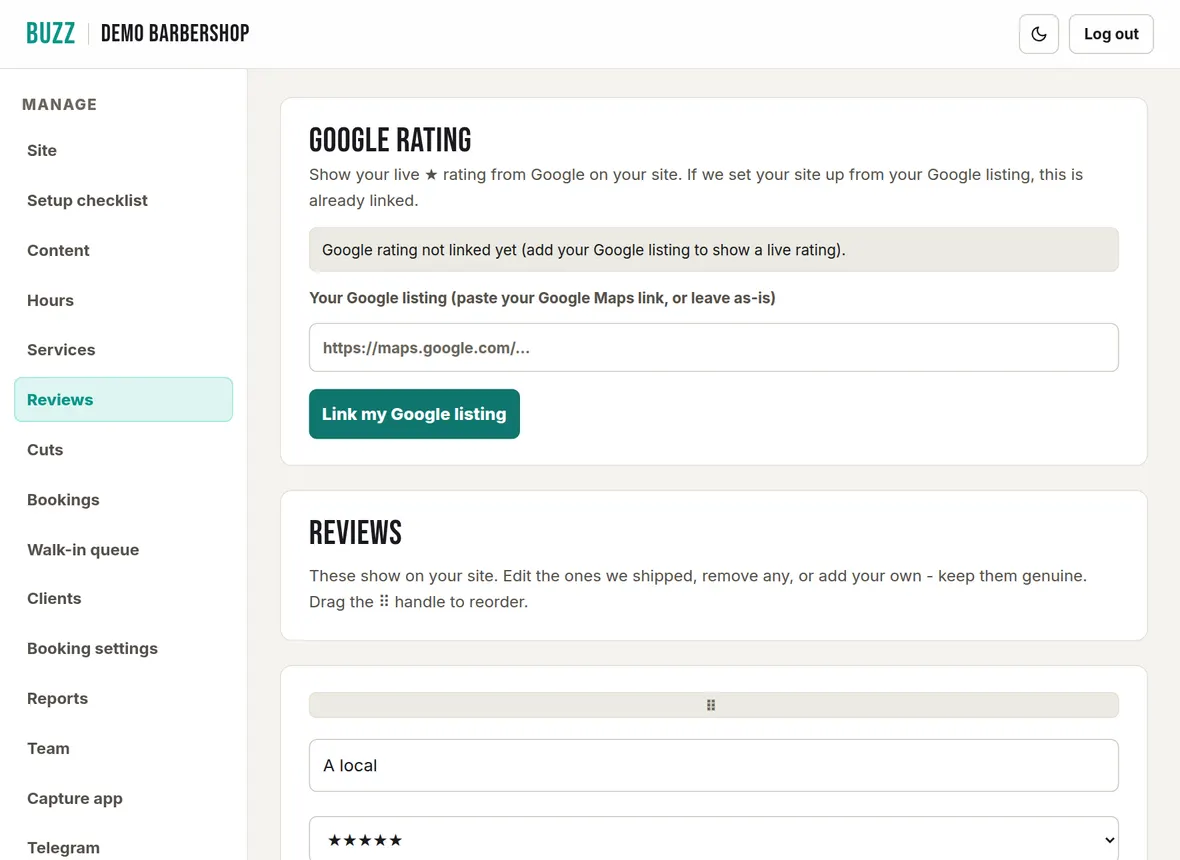
Google rating: paste your Google Maps link into Your Google listing and tap Link my Google listing. Your live star rating then shows on your site. If we built your site from your Google listing, it is already linked.
Reviews: the reviews shown on your site. Edit them, tap Remove to take one off, or + Add review to add one, then press Save reviews. Only use genuine reviews from real customers.
Related Buzz help topics
- Getting started with the shop console: Signing in, the console menu, your preview, asking Buzz to publish, and how long changes take to show.
- Cut photos, the capture app and Instagram: Snap cuts at the chair, add before and after photos, approve, download or delete them, and show your Instagram.
- Set up online booking and payments: Connect your bank, choose how customers pay, set cancellation rules, barbers, add-ons, blocked dates and fees.
- All help topics
Contact Buzz support
Use the Something needs fixing? box on the Site page of your console, or email hello@airea.co.nz. Tell us your shop name and what you were trying to do, and we reply by email.
Open my shop console