
In short
At the chair, open the capture app on your phone and snap the cut. From a computer, open Capture app in the console, choose a before and an after, and tap Add to site.
Snapped cuts wait on the Cuts page for your OK unless you switch on Auto-share cuts.
Add a cut from your computer
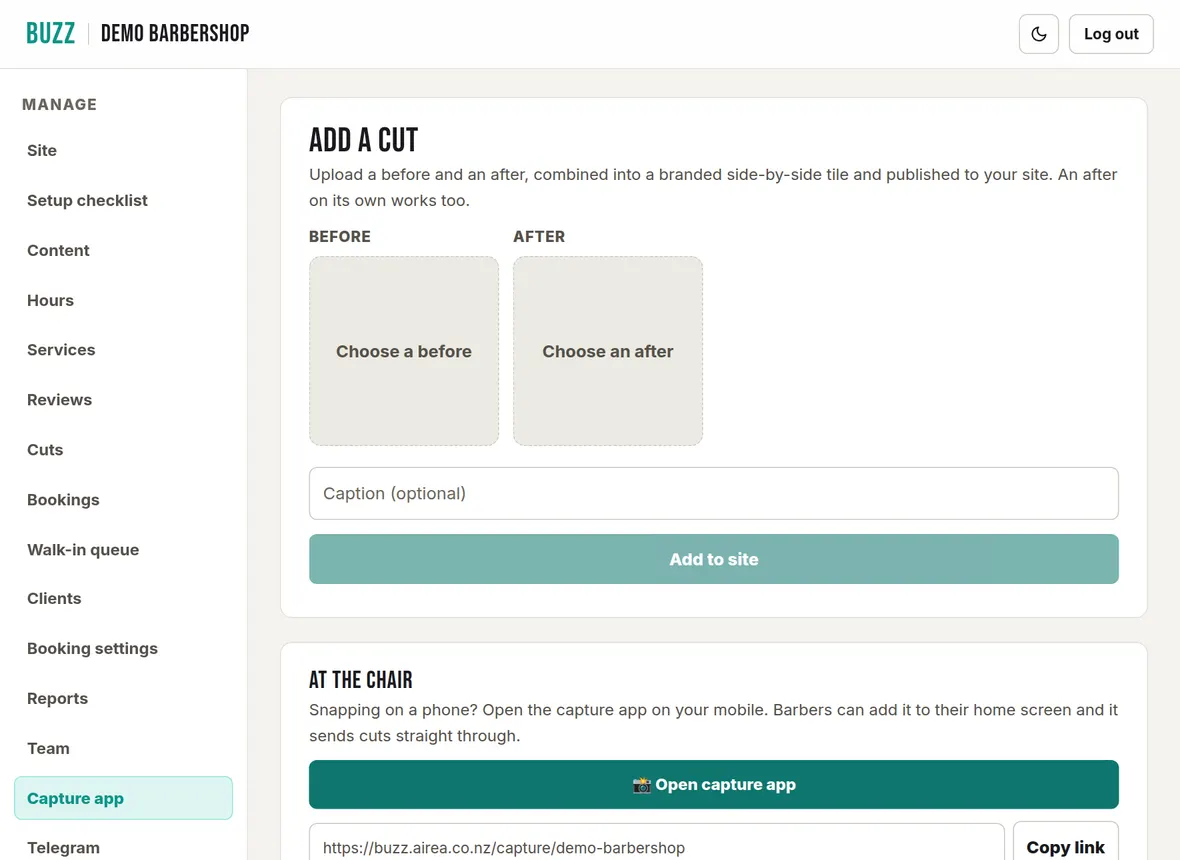
- Open Capture app from the menu.
- Tap Choose a before and pick the photo.
- Frame it: drag the photo to move it and use Zoom to show more or less of it. Only what is inside the frame goes on your site. Tap Use this photo.
- Do the same with Choose an after. An after on its own works too.
- Check the Preview. It shows the cut exactly as your site will show it. To change a photo's framing, tap Adjust framing under it. To swap a photo, tap the photo.
- Add a caption if you like, such as "Skin fade with a textured crop".
- Tap Add to site. Nothing goes on your site until you do.
Buzz puts the before above the after in one photo, stamps it with your shop name or logo and adds it to your site.
Use the capture app at the chair
The capture app is a full-screen camera page for phones, separate from the Capture app page in the console. Open it from Capture app → Open capture app, or copy its link with Copy link and send it to your barbers.
- Barbers who sign in with their own email land straight on it (or on the queue board if you use the walk-in queue, which has an Open photo capture button).
- Install it on your phone so the camera opens in one tap. It installs as its own app, Buzz Capture, separate from the console. On Android, open the capture app in Google Chrome, tap the three dots, then Install app. Use Chrome, not another browser, or Google Play Protect may block it. On iPhone, open it in Safari, tap Share, then Add to Home Screen.
- For a shared shop phone or tablet, use a device QR code instead. See Team and barbers.
To snap a cut:
- Tap + New cut, then Take / choose under Before.
- Frame the photo: drag it to move it and pinch or use Zoom to show more or less of it. Tap Use this photo.
- When the cut is done, do the same under After.
- Check the Preview: it shows the cut as the site will show it. Tap Adjust framing under a photo to change it.
- Tick the client consent box and tap Complete.
Approve, download or delete cuts
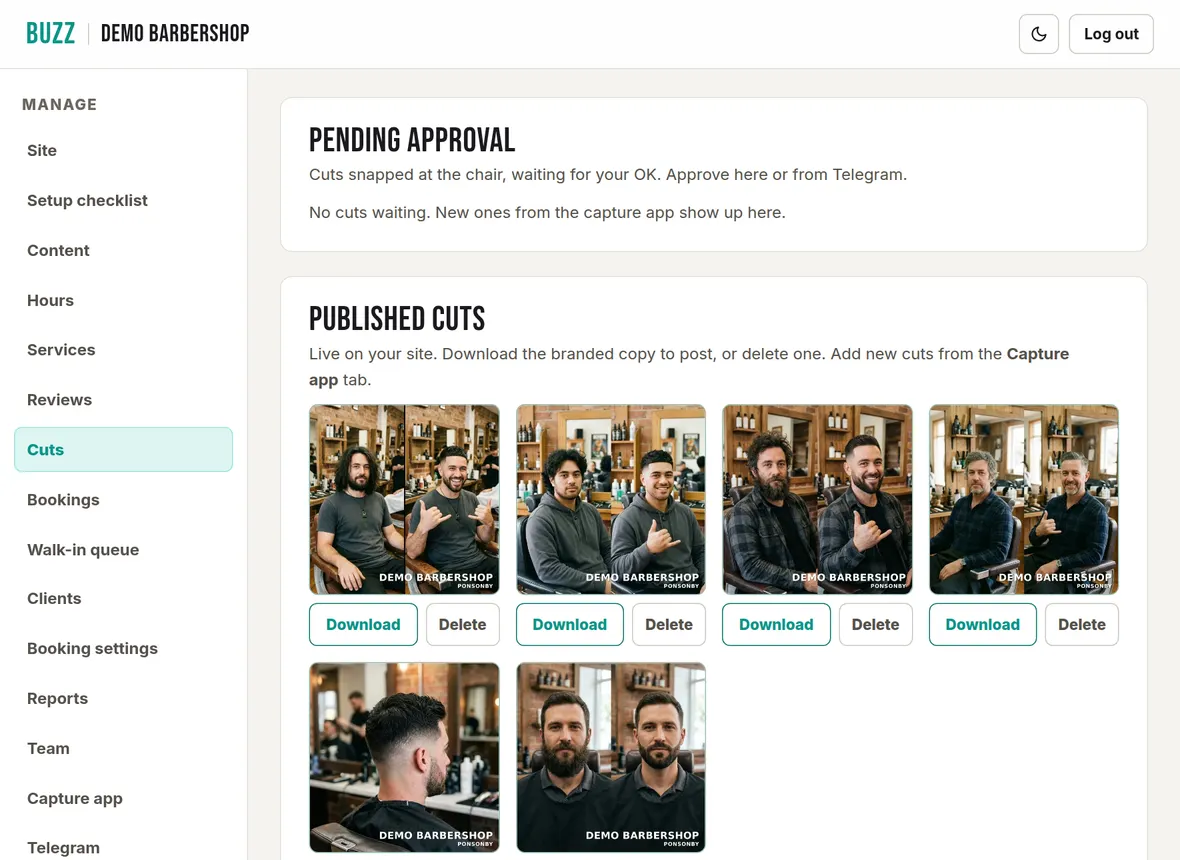
Open Cuts from the menu.
- Pending approval: cuts snapped at the chair, waiting for your OK. Tap Approve to put one on your site or Reject to bin it. With Telegram connected, you can approve from your phone too.
- Published cuts: everything on your site. Adjust framing opens the cut's original photo: drag it and zoom to choose what shows, then tap Save framing and your site updates. Download saves the branded copy to post on social media. Delete asks "Sure?"; tap again to remove it from your site.
Your site holds up to 24 photos, including your shop photos. Approving or adding a cut when there are already 24 removes the oldest one from your site, and the console tells you when this happens.
Capture settings
At the bottom of Capture app:
- Photo capture: lets phones send cuts. Switch it off to stop new photos coming in.
- Auto-share cuts: skips approval, so snapped cuts go straight to your site and to Telegram.
To choose the stamp on your cuts (your shop name, your logo or no stamp, its size and its corner), see Logo and photo stamp.
Show your Instagram on your site
If your console has an Instagram page, you can show your latest posts on your site. They refresh automatically.
- Open Instagram and tap Connect Instagram.
- Log in to Instagram and allow access. You come back to the console when it is done.
- Choose Show my Instagram on my site, whether to show Reels only, and how many Posts to show (4 to 12). Press Save.
- Business or Creator account needed: switching is free in the Instagram app under Settings, Account type.
- Sync now: fetches new posts straight away.
- Reconnect Instagram: fixes a dropped connection. Until then your site shows your photo gallery instead.
- Disconnect: removes your posts from your site.
Related Buzz help topics
- Edit your barbershop website: Theme, opening hours, services and prices, wording, Google search, FAQ, rules, areas served, logo, photos and reviews.
- Team, barbers and sign-in: Add barbers and photos, give barbers their own sign-in, set up a shop device, and remove access.
- Telegram alerts, site chat and busy status: Answer site chat from your phone, approve cuts, get waitlist alerts and show busy or quiet.
- All help topics
Contact Buzz support
Use the Something needs fixing? box on the Site page of your console, or email hello@airea.co.nz. Tell us your shop name and what you were trying to do, and we reply by email.
Open my shop console