
In short
Open Team, tap + Add barber, enter their name, sign-in email and photo, then press Save team.
Barbers sign in at buzz.airea.co.nz/console with that email. They only get the capture app and the queue board.
Add or remove a barber
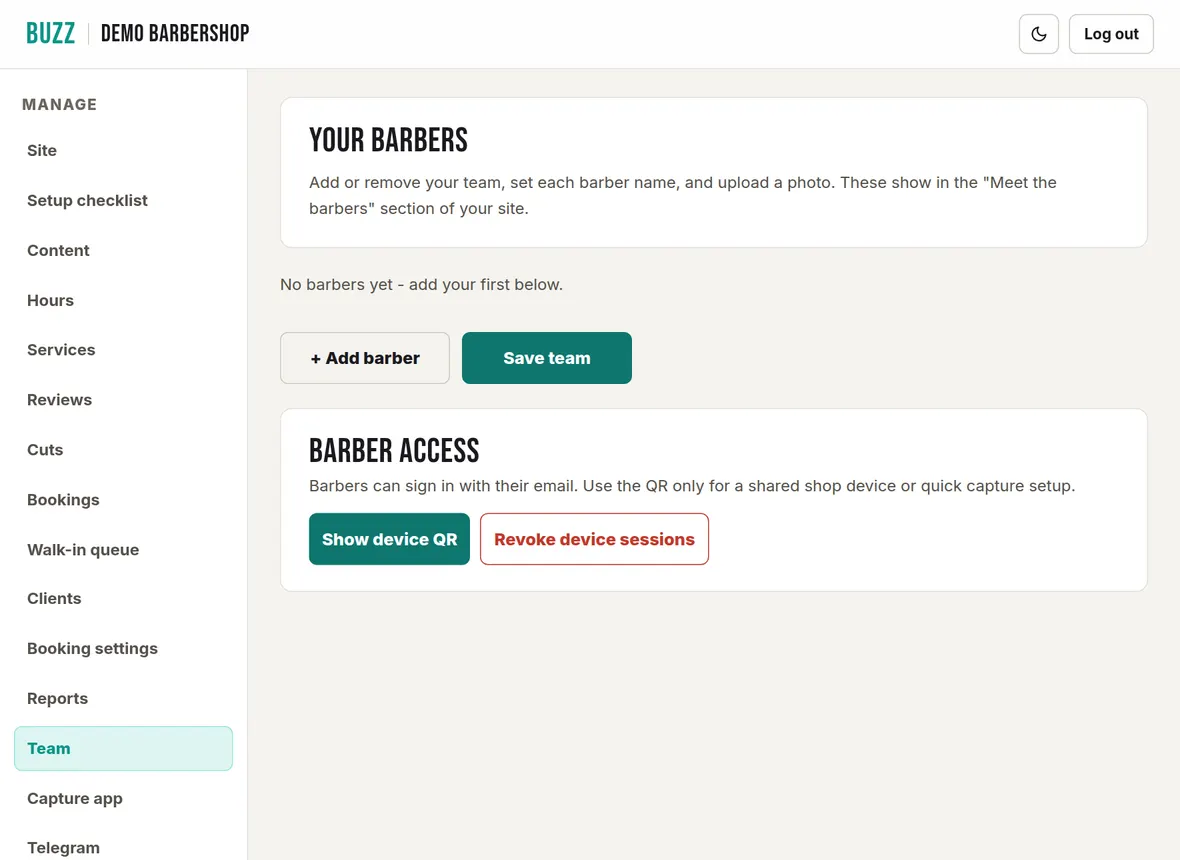
- Open Team and tap + Add barber.
- Enter their name and the email they will sign in with.
- Tap Add photo to upload a portrait.
- Drag the ⠿ handle, or use the arrows on a phone, to set the order they appear on your site.
- Press Save team.
Tap Remove on a barber, then Save team, to take them off your site.
How barbers sign in
A barber signs in at buzz.airea.co.nz/console with the email on their Team entry, using an emailed login link, Google or Microsoft. They land on the queue board if you use the walk-in queue, or the capture app if you don't. Barbers can't see your takings, client list, settings or billing. On the queue board they see today's appointments and the walk-in line, including customers' names and phone numbers.
Shared shop device QR code
For a shop phone or tablet that everyone uses, tap Show device QR under Barber access. Scan the code on the device, or Copy link and open it there. The device can then send cut photos. Email sign-in is still the normal way in for each barber.
Remove a barber's access
When you remove a barber from the team and save, their email sign-in ends. If they also used the shop QR code on their own phone, tap Revoke device sessions. That signs out every device that used the QR code; shop devices then need a fresh code.
Barbers in bookings and the queue
- To let customers choose a barber online, switch them on in Booking settings → Barbers, where you also set their services, hours and days off.
- To have them take walk-ins, tick them under Walk-in queue → Barbers in the queue.
Related Buzz help topics
- Run the walk-in queue: Turn the queue on, set the rules, check barbers in, run the queue board and set up a kiosk or waiting-room display.
- Set up online booking and payments: Connect your bank, choose how customers pay, set cancellation rules, barbers, add-ons, blocked dates and fees.
- Cut photos, the capture app and Instagram: Snap cuts at the chair, add before and after photos, approve, download or delete them, and show your Instagram.
- All help topics
Contact Buzz support
Use the Something needs fixing? box on the Site page of your console, or email hello@airea.co.nz. Tell us your shop name and what you were trying to do, and we reply by email.
Open my shop console