
In short
Open Walk-in queue and switch on Use the walk-in queue. Then tap Open staff board to open the queue board on a shop device to call, start and finish customers.
Barbers tap Start my shift when they arrive. Everyone goes off duty automatically when the shop closes.
Turn on the walk-in queue
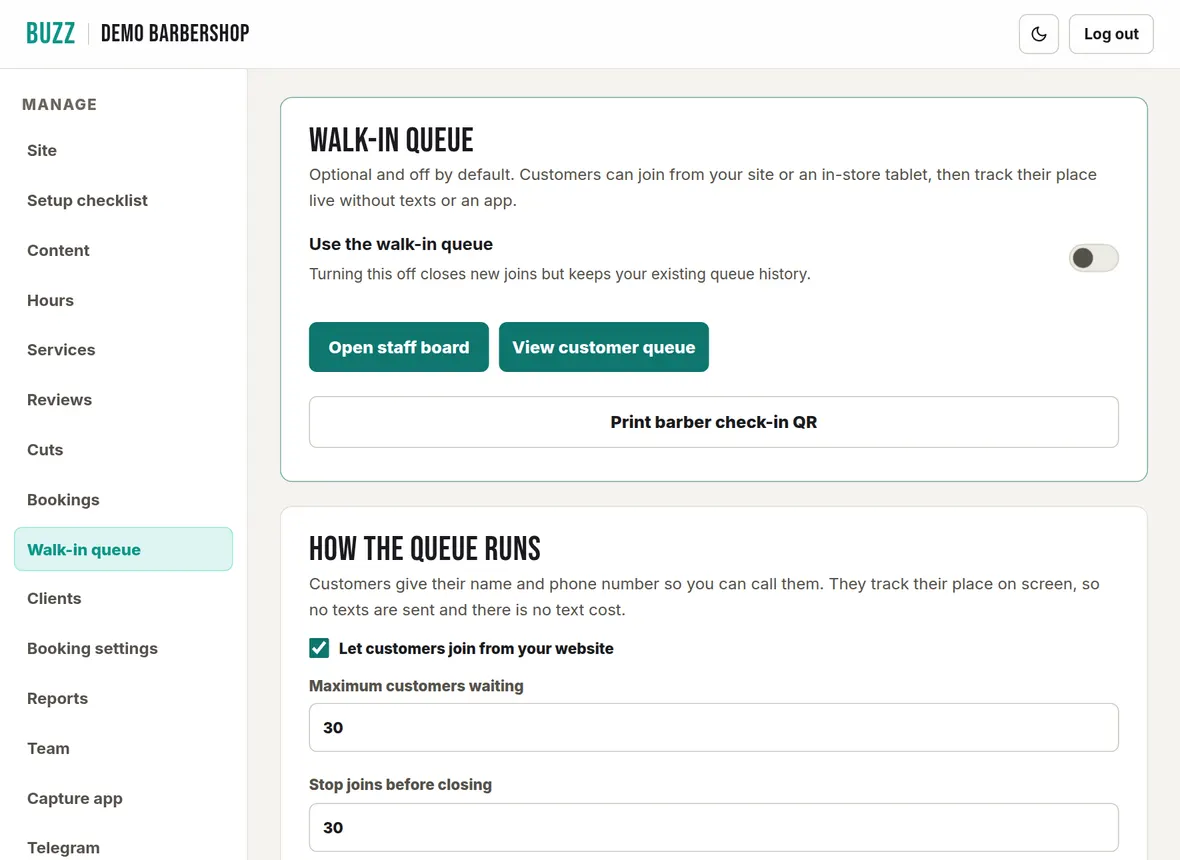
The queue is optional and off until you switch it on. Open Walk-in queue and switch on Use the walk-in queue. Switching it off stops new customers joining but keeps your history.
- Open staff board: opens the queue board you run the queue from.
- View customer queue: the page customers see.
- Print barber check-in QR: a card for the mirror or front desk.
How the queue runs
Customers give their name and phone number so you can call them. They track their place on screen, so no texts are sent and nothing costs extra.
- Let customers join from your website: untick to only take joins in the shop.
- Maximum customers waiting: joins stop when the line is this long. The default is 30.
- Stop joins before closing: minutes before closing that joins stop. The default is 30.
- Call window: how many minutes a called customer has to come up. The default is 5.
Press Save queue settings.
Barbers in the queue
Your barbers come from the Team page. Tick the barbers who take walk-ins. When they are on duty, customers can choose them or take the first available barber. A shop with no barbers on its team runs as one shop chair, so the queue still works.
Barber check-in QR code
Tap Print barber check-in QR and stick the card by the mirror or at the front desk. Barbers:
- Scan it with their phone camera.
- The first time, sign in with their email or Google.
- Tap Start my shift when they arrive, and Finish for the day when they leave.
The code only opens the check-in page, so a customer who scans it can't change anything. Everyone goes off duty automatically when the shop closes.
The queue board (staff board)
The queue board works on any shop phone, tablet or computer, and every action updates the shared line straight away.
- Open, Pause joins and Close (owners only) control whether customers can join.
- Barbers on shift (owners) or My availability (barbers): set Available, Break or Off duty. This changes the wait estimate straight away.
- Today's appointments: tap Check in when a booked customer arrives to put them into the same line.
- Add a walk-in: for customers who join at the counter. Enter their name, service and barber, then Add to queue.
For each customer:
- Waiting: Call them up. Owners can also Assign a barber. Anyone can mark them as in the shop or stepped out, Move up and Move down with a reason, or Cancel.
- Called: Start when they sit down, Return to line, or No-show if they don't come up within the call window.
- In chair: Finish when the cut is done, or Cancel.
Check-in kiosk and waiting-room display
Under Shop devices, make a link for a tablet or screen in the shop. Any modern browser works.
- Name the device, such as "Front counter".
- Choose Customer check-in kiosk (customers join on it) or Waiting-room display (shows the line).
- Tap Create device link, then Copy link or Open device on the device itself.
For security the link is shown only once. Tap Revoke to stop a device straight away.
Walk-in queue numbers
Last 30 days shows how many customers joined, were served, cancelled or didn't show, plus the average wait and the average time in the chair. Booking takings are in Reports.
Related Buzz help topics
- Team, barbers and sign-in: Add barbers and photos, give barbers their own sign-in, set up a shop device, and remove access.
- Manage bookings, payments and the waitlist: Add phone bookings, check in, no-shows, reschedule, take payment, cancel or refund, and the waitlist.
- Telegram alerts, site chat and busy status: Answer site chat from your phone, approve cuts, get waitlist alerts and show busy or quiet.
- All help topics
Contact Buzz support
Use the Something needs fixing? box on the Site page of your console, or email hello@airea.co.nz. Tell us your shop name and what you were trying to do, and we reply by email.
Open my shop console