
In short
To take bookings without cards, open Booking settings, set How customers pay to Pay in the shop, no card, press Save payment choice, then switch on Accept online bookings. The switch saves straight away.
To take card payments, tap Connect bank account first and finish the Stripe setup. Card payments go to your own Stripe account.
Connect your bank account
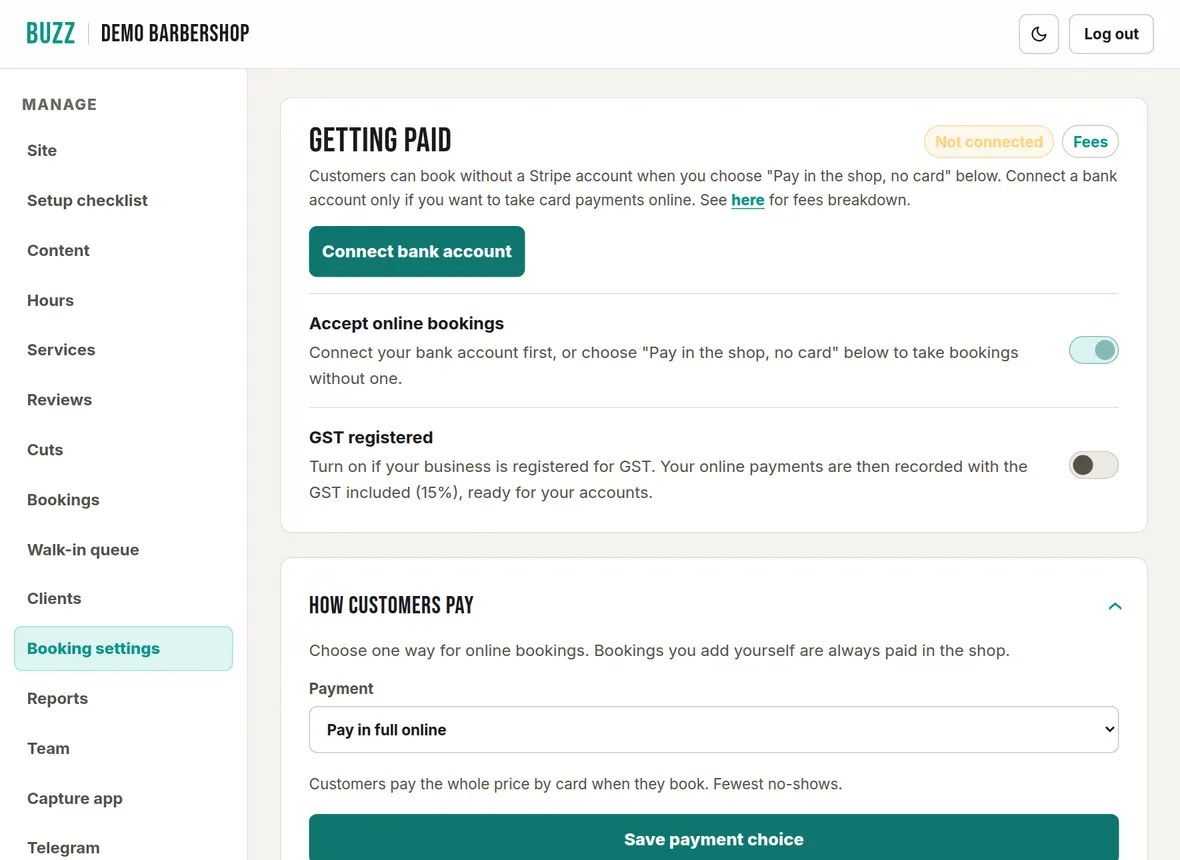
Stripe is the company that handles card payments for Buzz. Setting up is free. Card payments go to your own Stripe account, then to your bank. You only need this if you want to take card payments online.
- Open Booking settings and tap Connect bank account.
- Stripe opens in a new tab. Enter your business and bank details. Stripe needs these to pay you.
- When you are done, the label at the top shows Connected. If it shows Setup incomplete, tap Continue Stripe setup.
Open Stripe dashboard shows your payments and payouts in Stripe.
Work through the sections below, then, as the last step, switch on Accept online bookings at the top of the page. The switch saves straight away, and customers can then book from your site. If it can't be switched on yet, the console tells you why.
Choose how customers pay
Under How customers pay, choose one option for online bookings and press Save payment choice. Bookings you add yourself are always paid in the shop.
| Option | What happens |
|---|---|
| Pay in full online | Customers pay the whole price by card when they book. Fewest no-shows. |
| Deposit online, rest in the shop | Customers pay a deposit by card, then the rest in the shop. Set the deposit as a percent of the price or a fixed amount. |
| Save card, pay in the shop (no-show fee option) | Customers save a card but aren't charged. They pay in the shop. If they don't show, you can charge your no-show fee to that card from the Bookings page. Set the fee as a percent or a fixed amount. |
| Pay in the shop, no card | Customers book with their name, email and phone and pay in the shop. No Stripe account needed. Easiest for customers, but nothing protects you from no-shows. |
If you choose a card option before your bank account is connected, online booking switches off until you connect it.
Booking times and notice
In the section headed Booking settings on the Booking settings page:
- Chairs at once: how many customers you can take at the same time. Only used if you haven't switched on any barbers for booking. Once you do, each barber takes one booking at a time.
- Slot length: how often start times are offered: every 15, 30 or 45 minutes.
- Min notice hours: how soon before an appointment someone can book. The default is 2 hours.
- Days ahead: how far ahead customers can book. The default is 14 days.
- Gap after each appointment: time to clean down between customers.
Press Save booking settings. On a phone, each section of this page folds; tap its heading to open it.
Cancellation policy
Customers can cancel or reschedule from the link in their confirmation email, up to a set number of hours before the appointment. A reschedule keeps the same price.
- Self-serve window: how many hours before the appointment customers can still cancel or reschedule themselves. The default is 48.
- Cancellation fee: $0 - full refund; Cover Buzz + Stripe fees, which keeps what the card payment cost you; or Custom shop fee, an amount you set.
The fee only comes out of money paid online, and only when the customer cancels themselves. When you cancel or refund from the Bookings page, the customer gets a full refund. Press Save cancellation policy. Your rules page updates itself to match.
Bookable services
These are the services on your menu, so there is nothing to add here. To add or change a service, use the Services page. For each one, set:
- Length: how long it takes, from 10 minutes to 2 hours, so the diary is right.
- Gap: leave on Shop gap, or set a different gap after this service.
- Book online: untick a service you don't want booked online.
Press Save services.
Barbers, their hours and days off
Barbers come from the Team page. Under Barbers:
- Switch a barber on to let customers choose them online. Each barber has their own diary.
- Services they do: leave everything ticked if they do every service, or untick the ones they don't, then Save services.
- Hours and days off: for each day choose Shop hours, Custom (set their start and finish) or Day off, then Save hours. To book a one-off day off, pick the date, add a reason if you like, and tap Add day off.
Extras and add-ons
Paid add-ons, such as a hot towel or a beard line-up, that customers can add when they book. Tap + Add extra, enter the name, price and how many extra minutes it takes, then Save extras. Untick On to hide one without deleting it.
Blocked dates
Block days you are closed, such as public holidays, so nobody can book them. Pick the date, add a reason if you like, and tap Block date. Tap Remove to open the day again. Past dates are hidden.
Online booking fees
In short: a card payment costs Stripe's fee plus 0.5%. Cash and EFTPOS cost nothing.
Tap Fees at the top of Booking settings for the full breakdown with a worked example.
- Buzz booking fee: 0.5% incl. GST, only on card payments taken through Buzz (online bookings, deposits, payment links and saved-card charges). Stripe takes it from each payment and we email you a GST tax invoice for it each month.
- Stripe's card fee: 2.65% + NZ$0.30 for NZ cards, 3.5% + NZ$0.30 for international cards, plus 2% if currency conversion is needed. Stripe sets these.
- No fee at all on cash, EFTPOS, bookings you add yourself and pay-in-the-shop bookings.
When you refund a customer, Buzz's 0.5% on that payment isn't returned, in the same way Stripe keeps its fee.
GST on online bookings
If your business is registered for GST, switch on GST registered at the top of Booking settings. Your online payments are then recorded with 15% GST included, ready for your accounts.
Related Buzz help topics
- Manage bookings, payments and the waitlist: Add phone bookings, check in, no-shows, reschedule, take payment, cancel or refund, and the waitlist.
- Edit your barbershop website: Theme, opening hours, services and prices, wording, Google search, FAQ, rules, areas served, logo, photos and reviews.
- Clients, reports and Xero exports: Client notes, importing clients from a CSV, takings reports, PDF export and Xero files.
- All help topics
Contact Buzz support
Use the Something needs fixing? box on the Site page of your console, or email hello@airea.co.nz. Tell us your shop name and what you were trying to do, and we reply by email.
Open my shop console